How to set up L2TP/IPsec on Android
L2TP/IPsec is built into iPhone, iPad, Mac and Windows, so no app is needed. You need the server address, your username and password, and the pre-shared key.
Last reviewed
What you need
- An active L2TP/IPsec configuration from this site
- Server address, username, password and pre-shared key (IPsec) from your configuration page
App
No app to install.
Where each detail goes
| On your configuration page | In the app or settings |
|---|---|
| Server | Server / Server address / Gateway |
| Username | Account / User name |
| Password | Password |
| Pre-shared key (IPsec) | Secret / Shared secret / Pre-shared key |
Steps
-
Only on Android 11 or older: open Settings → Network & internet → VPN → +.
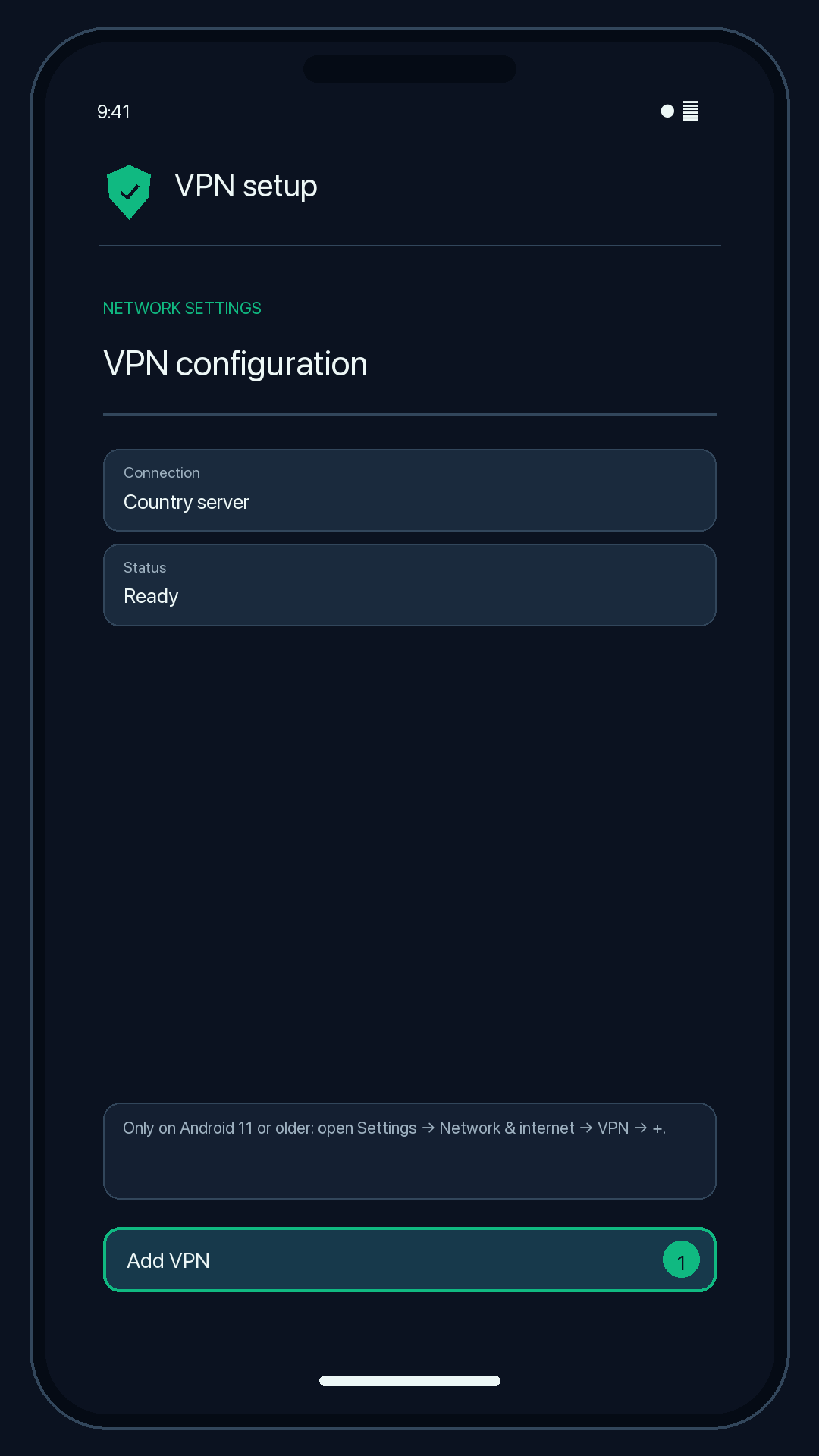
Illustration — your app may look slightly different. -
Type: L2TP/IPSec PSK. Server address: your Server. IPSec pre-shared key: your Pre-shared key.
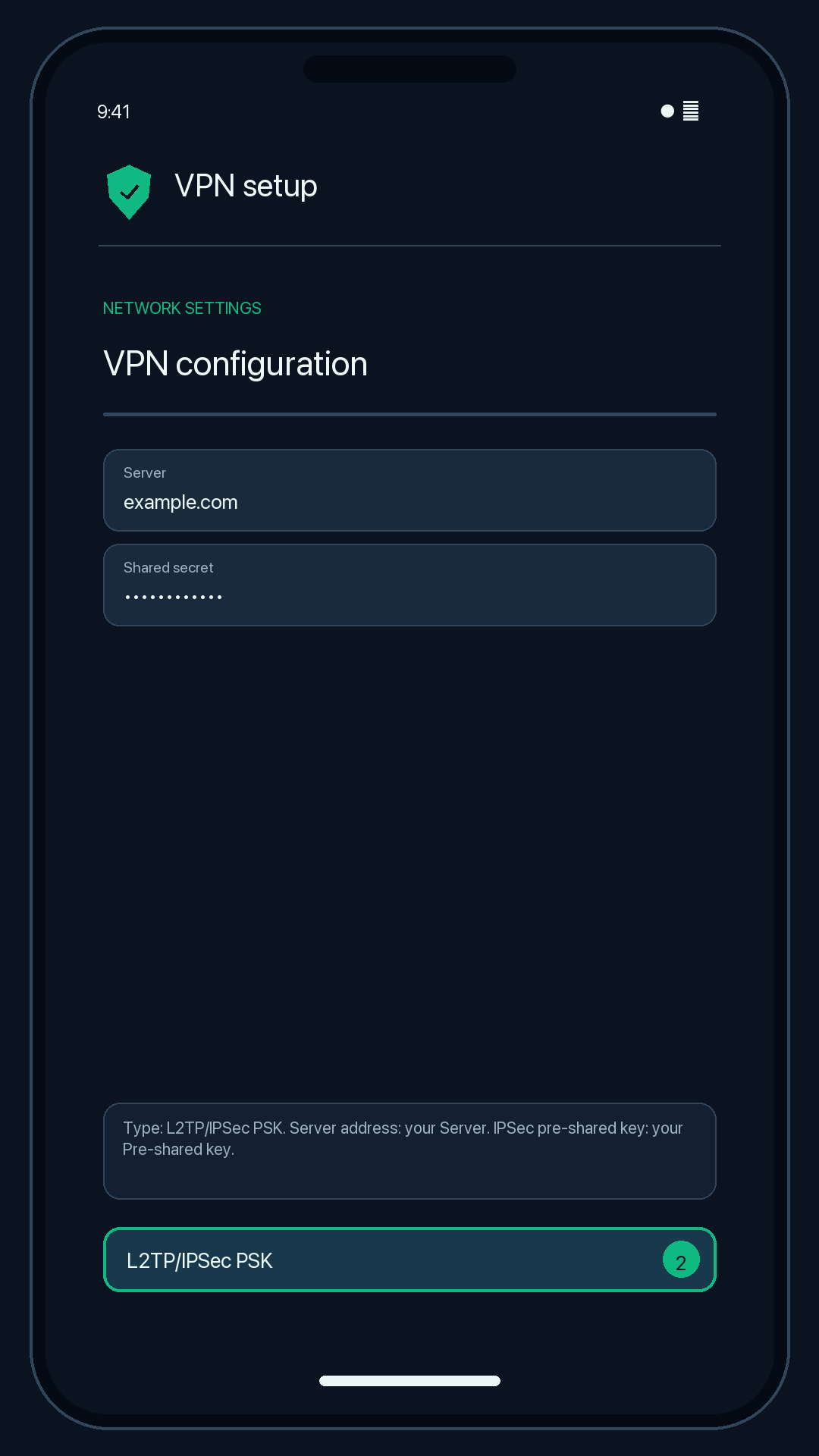
Illustration — your app may look slightly different. -
Tap Save, then tap the new profile.
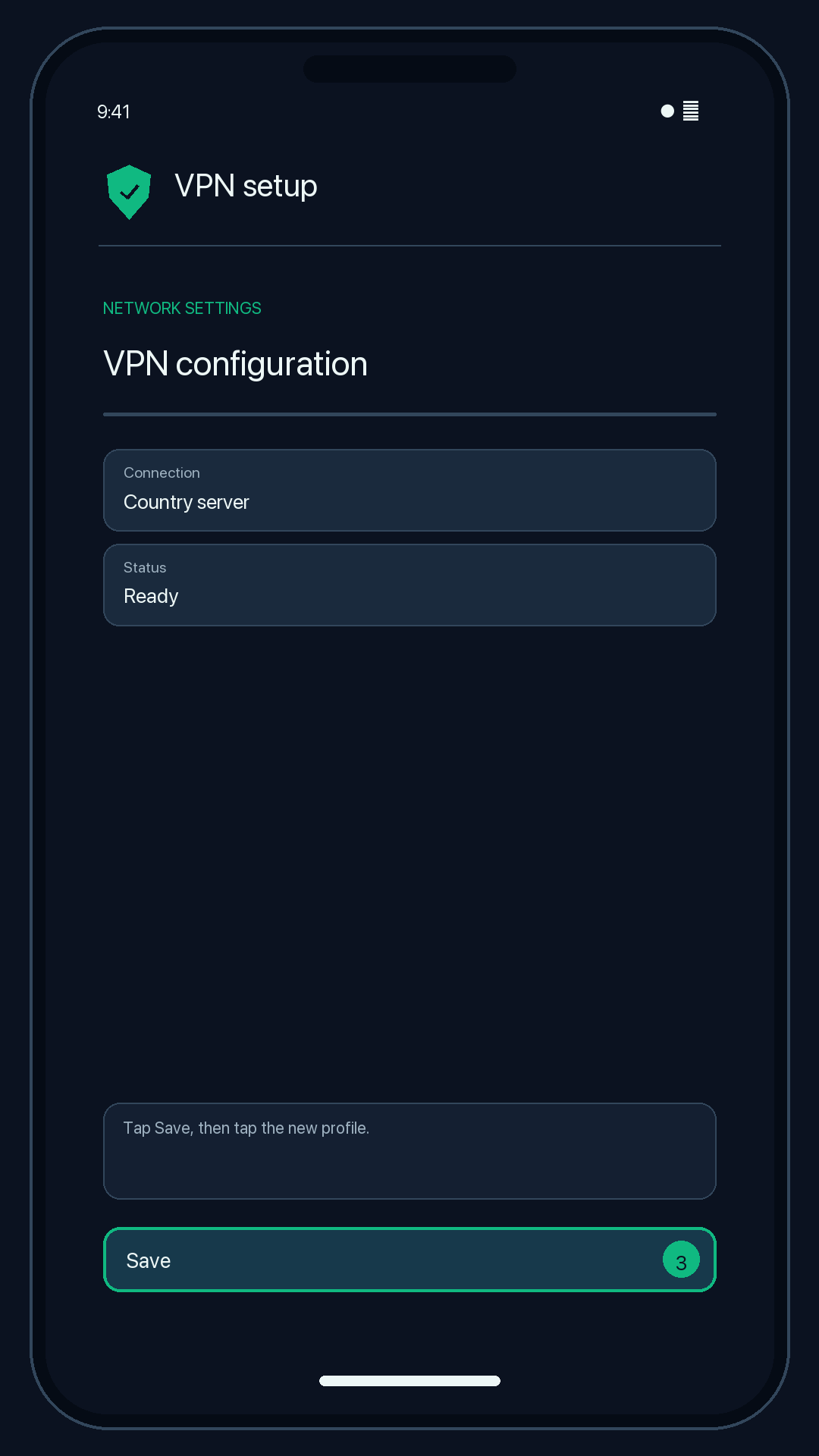
Illustration — your app may look slightly different. -
Enter your username and password and tap Connect.
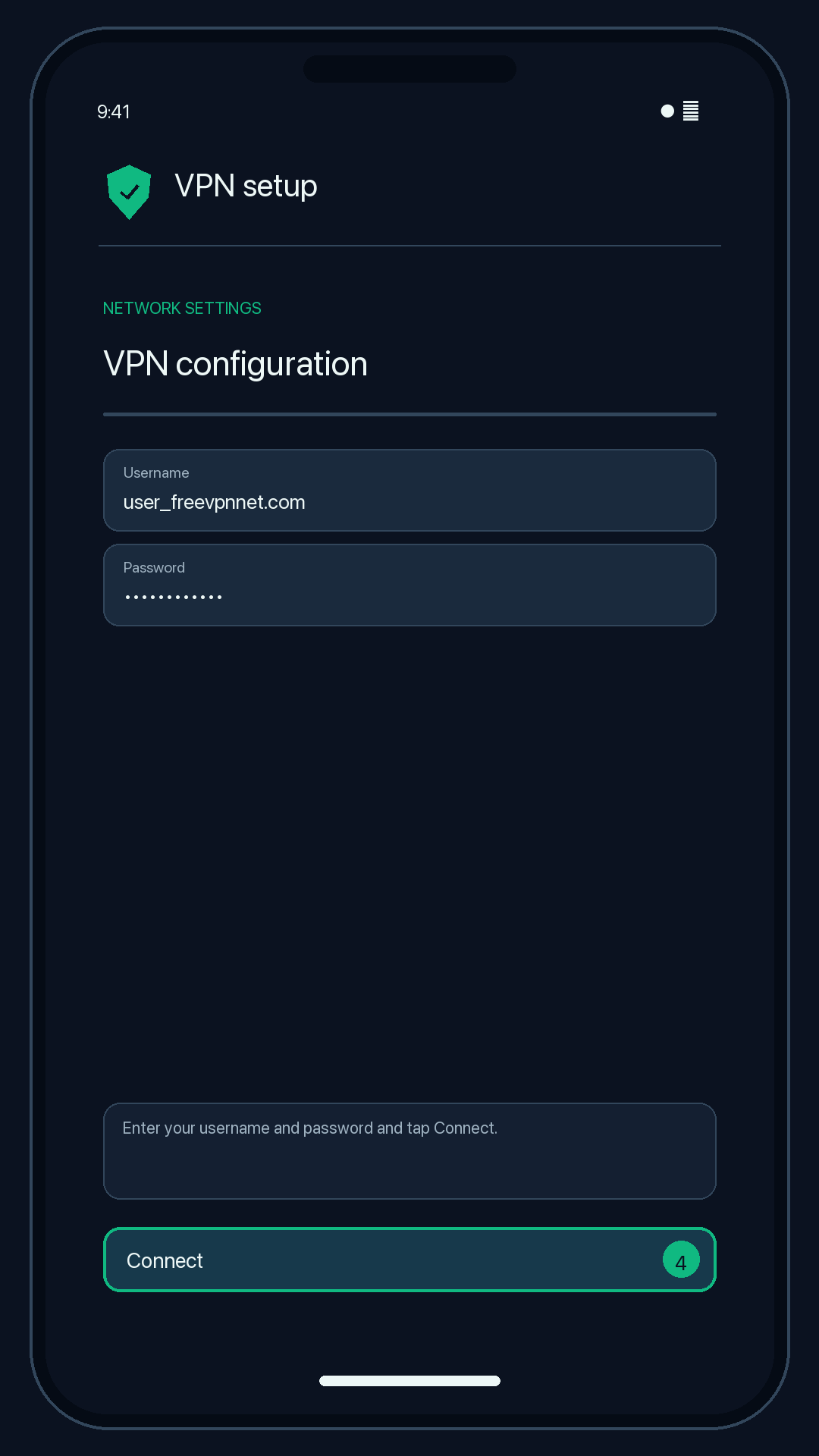
Illustration — your app may look slightly different.
Check that it works
The VPN status shows "Connected". Search the web for "what is my IP"; the location should match your server country.
Disconnect
Tap the profile and choose Disconnect.
Troubleshooting
Authentication failed
Re-type the username, password and pre-shared key exactly as shown (they are case-sensitive). The configuration may also have expired.
Connects on mobile data but not on Wi-Fi
Some routers block the ports L2TP/IPsec uses (UDP 500 and 4500). Try another network or use WireGuard or OpenVPN.
The L2TP option is missing
Android 12 and newer, and some managed devices, no longer offer L2TP/IPsec. Use WireGuard or OpenVPN instead.