How to set up V2Ray / Xray on Windows
V2Ray (VLESS over WebSocket and TLS) looks like normal HTTPS traffic on port 443, so it works on networks that block other VPNs. You import one connection link or scan a QR code.
Last reviewed
What you need
- An active V2Ray configuration from this site
- The connection link (vless://…) or the QR code from your configuration page
Where each detail goes
| On your configuration page | In the app or settings |
|---|---|
| Connection link / QR code | Import from clipboard / Scan QR code — fills every field |
| Server, Port | Address, Port (443) |
| UUID | User ID / UUID |
| Transport, Path, SNI, Security | Network ws, path, SNI/host, TLS — already in the link |
Steps
-
Download the latest v2rayN for Windows from its official GitHub releases page (link above) and extract it. Always use the newest release.
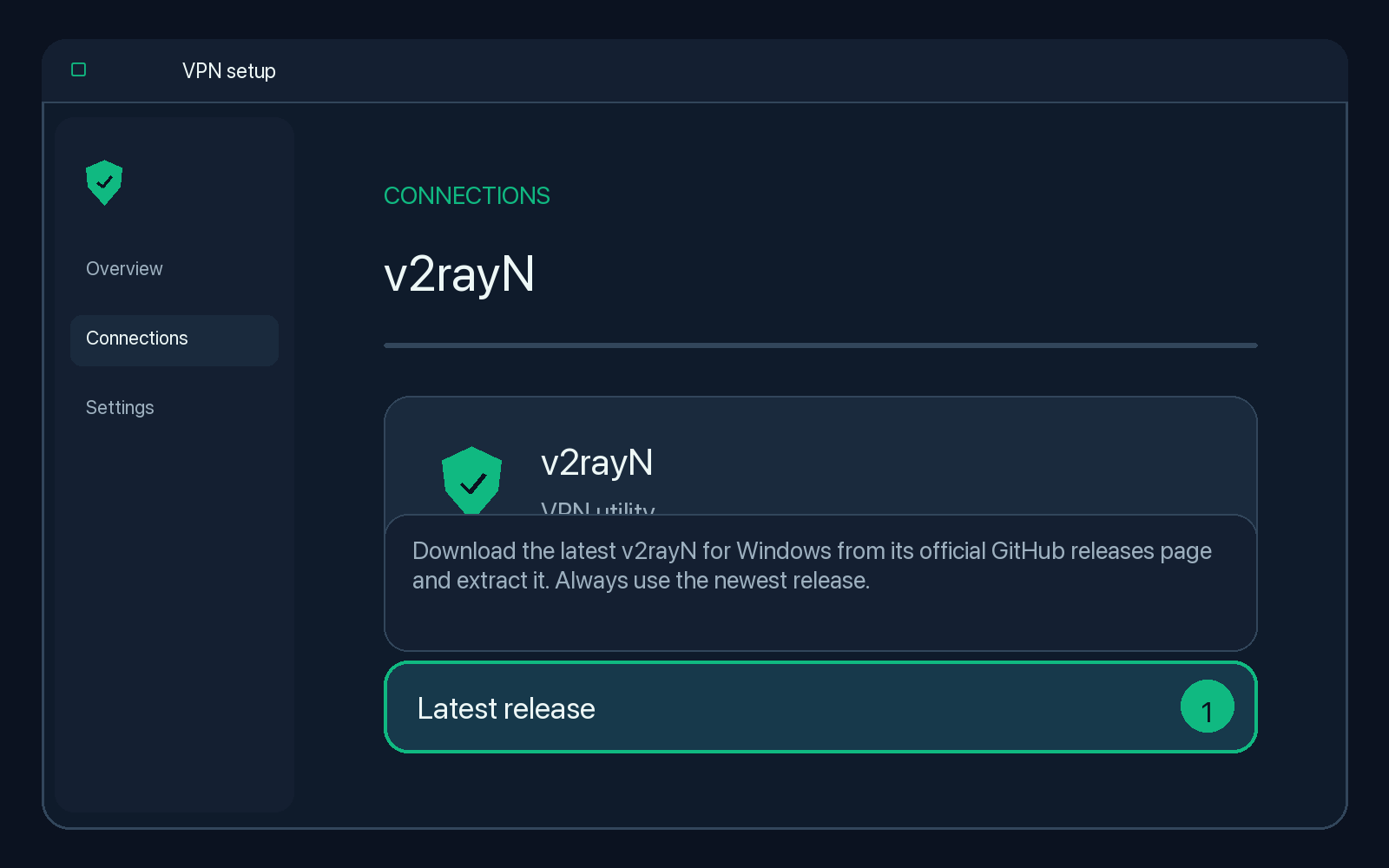
Illustration — your app may look slightly different. -
Copy the connection link from your configuration page.
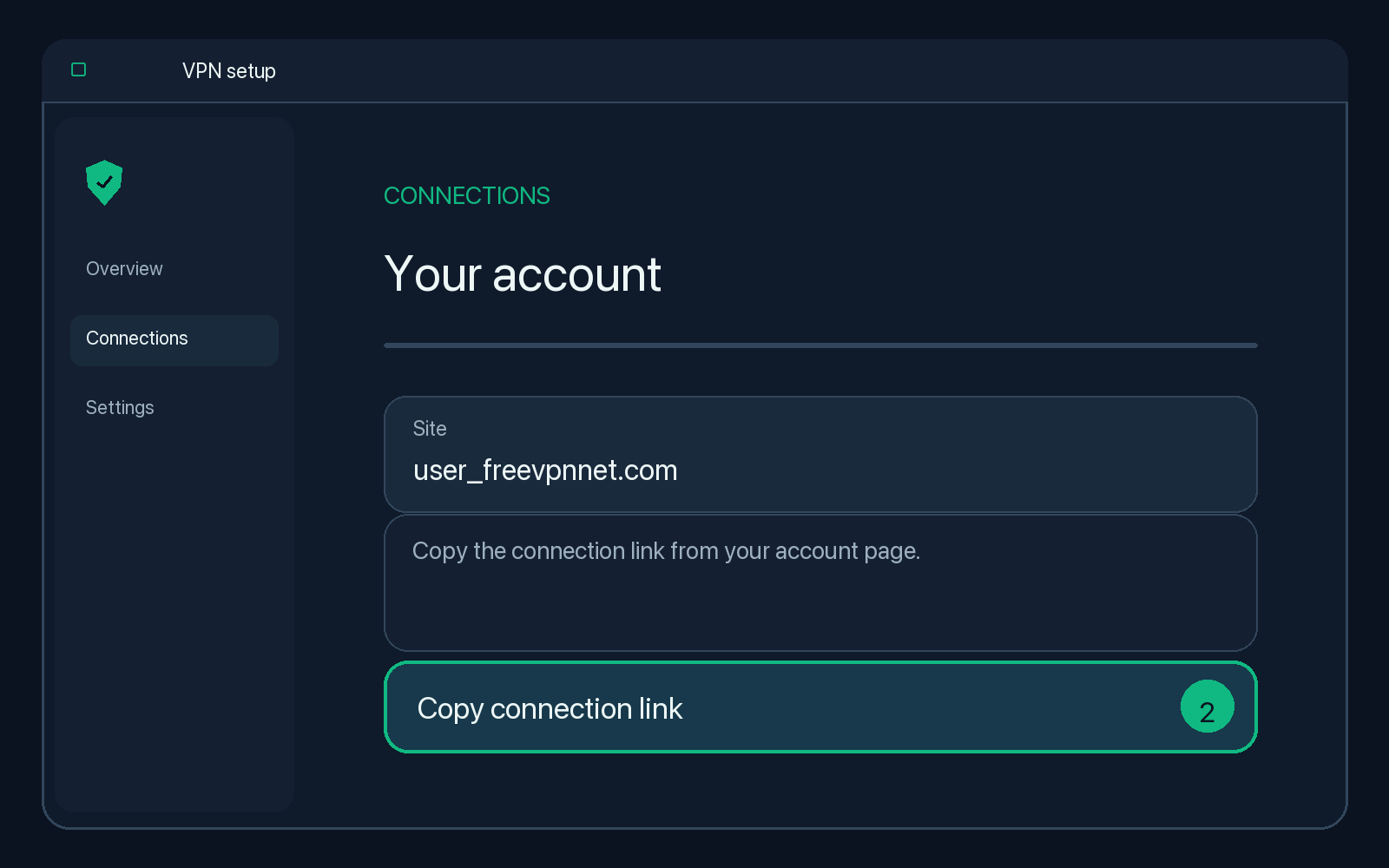
Illustration — your app may look slightly different. -
Open v2rayN and choose Servers → Import share links from clipboard.
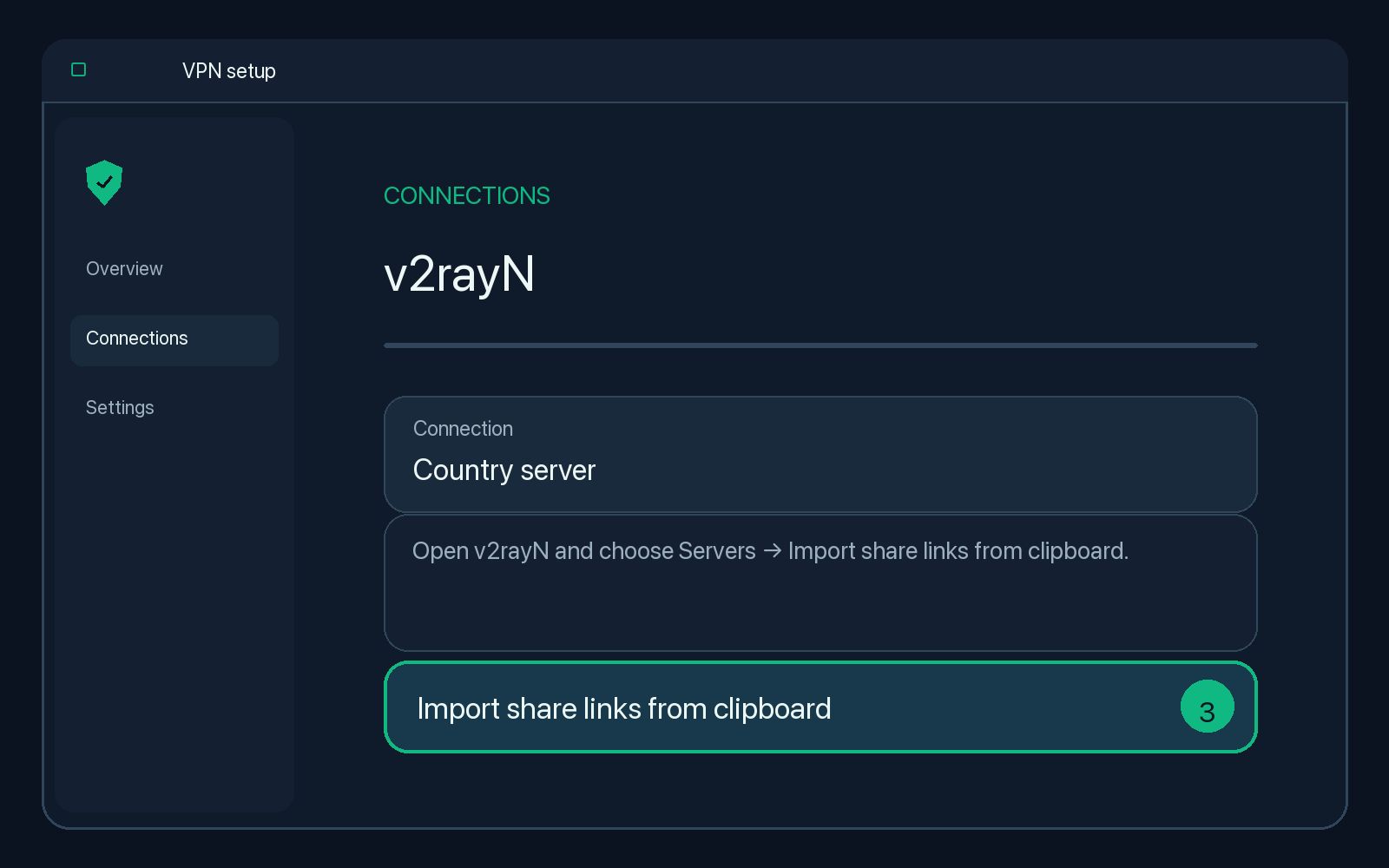
Illustration — your app may look slightly different. -
Select the server, then set System proxy → Set system proxy (or enable TUN mode for all apps).
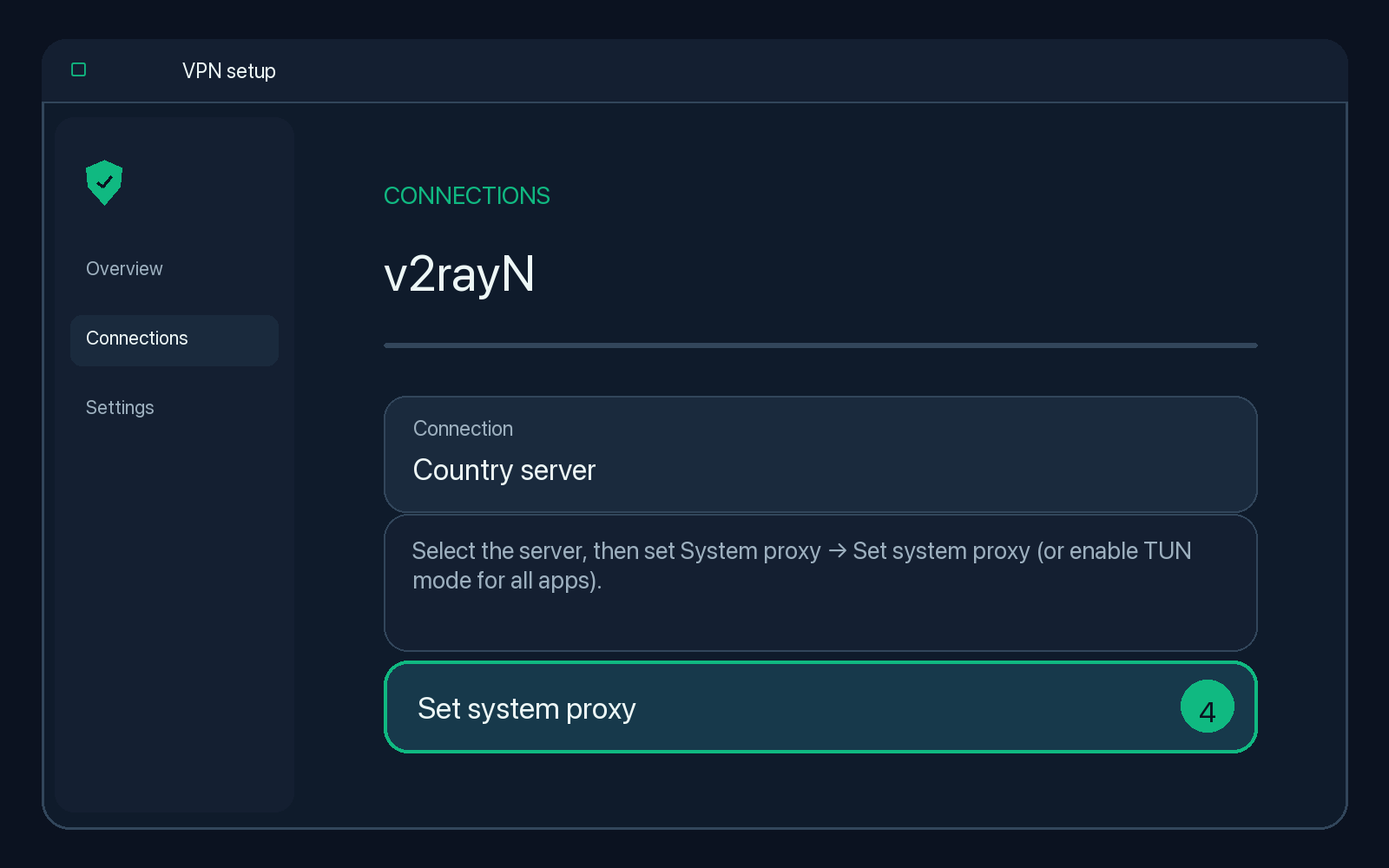
Illustration — your app may look slightly different.
Check that it works
The app shows it is connected. Search the web for "what is my IP"; the location should match your server country.
Disconnect
Choose Clear system proxy (or turn TUN off).
Troubleshooting
Connected but no internet
Make sure you imported the newest link from your configuration page and that the configuration has not expired. Check that the app's time is correct; TLS needs an accurate clock.
TLS or certificate error
Update the app to its latest version. If your configuration page says the certificate is self-signed, follow the note shown there.
Import fails
Copy the whole link starting with vless:// using the copy button, then import from the clipboard again.